At a glance
DeepSeek Creator Mode lets you add features to your AI workspace by chatting with it. Need to read a paper? Ask for a reader with highlights and notes. Need to edit a video? Ask it to add an editor. Once the feature is in place, keep the conversation going to refine it.
DeepSeek Harness follows an “Everything is a plugin” architecture. Models, tools, skills, interfaces, and even the agent loop can be replaced and combined as plugins. The architecture is designed to let an agent change how the harness works at runtime without interrupting the current task.
DeepSeek Creator Mode was already available in the early developer preview, where it was well received. This article covers what it does, why it uses this plugin architecture, and how to get started.
Why Creator Mode stands out
To me, Creator Mode is the most distinctive feature of DeepSeek Harness. It offers a glimpse into DeepSeek’s thinking on AGI and recursive self-improvement (RSI): can an agent adapt its tools and runtime environment as it works?
DeepSeek Harness applies “Everything is a plugin” across the system. With Creator Mode, an agent can modify its tools and interface at runtime, extending that customization to the harness itself.
What is DeepSeek Creator Mode?
Creator Mode is a mode in DeepSeek Harness for building plugins and adapting the runtime environment. It makes the harness itself something the agent can modify: describe the tools, interface, or workflow you need, and the agent implements those changes in your current workspace.
One user on X shared a code review example. After using AI to change code, he often had to open files one by one to understand the changes. He asked Creator Mode to add a Guided Review mode to DeepSeek Harness, presenting changes in an order that was easier to follow and explaining the purpose of each change. User report
Another early user asked the agent to create a coin-flip tool. According to his account, the agent inspected the running environment’s service registry, wrote a plugin, registered the tool, and called it in the same conversation, without restarting DeepSeek Harness. User report
Another user built up a set of everyday tools: a notepad for capturing ideas, a dashboard for monitoring local hardware, and a Kanban board for managing projects. User report
How does DeepSeek Creator Mode work?
DeepSeek Creator Mode can modify its working environment because DeepSeek Harness is built on the Cordis plugin framework. During the early design phase, DeepSeek considered several approaches before choosing Cordis and applying “Everything is a plugin” throughout the harness.
Cordis gives plugins a shared runtime. Each plugin can provide services and declare the services it depends on. Other components access those capabilities through interfaces, so a feature’s plugin can be replaced while the surrounding components stay in place. Architecture documentation
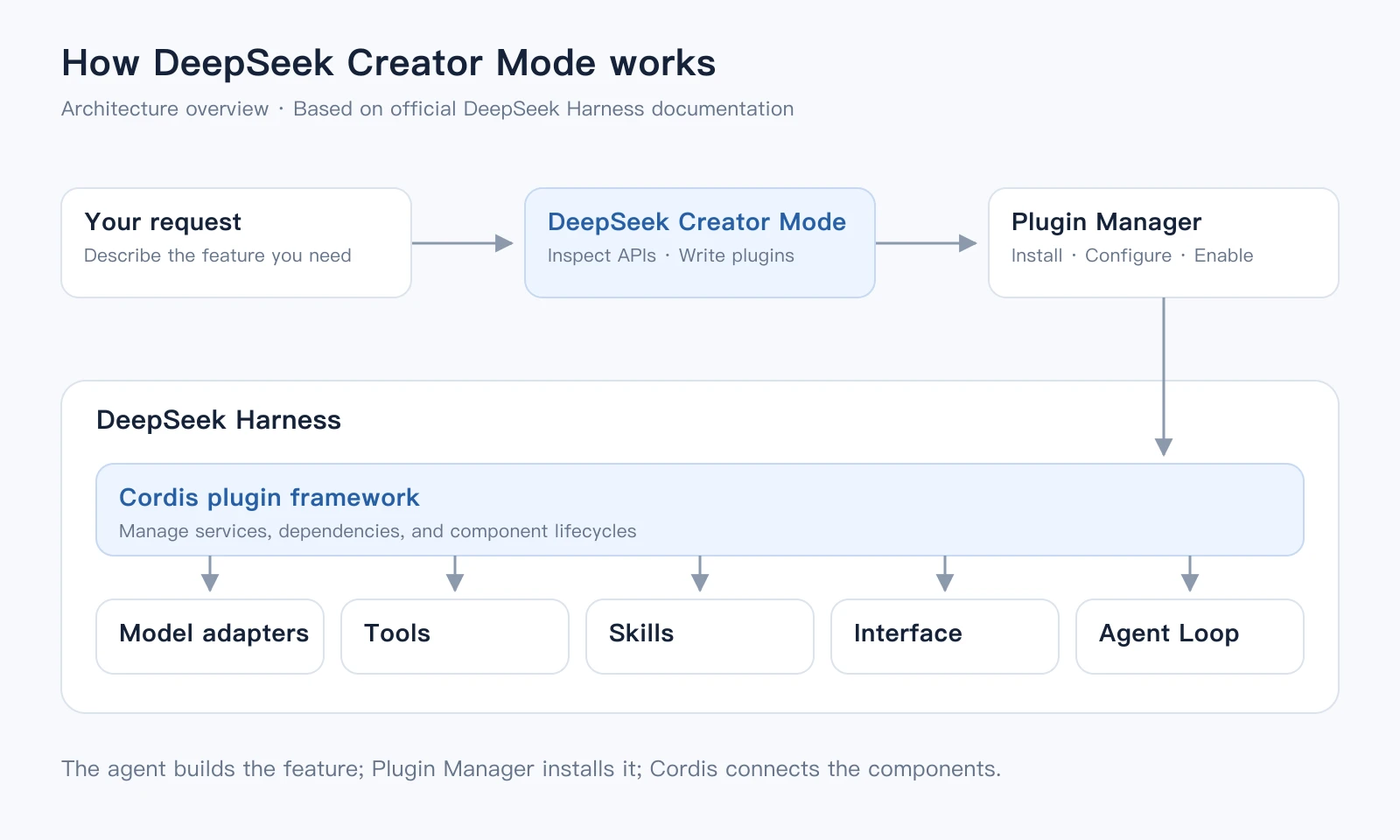
Creator Mode gives the agent tools to inspect that environment. When you make a request, the agent can query existing services, interfaces, and configuration to find where the feature should connect, then consult the relevant development documentation and write a plugin. Runtime inspection tools
Once a plugin is installed and enabled, Cordis manages its relationships with other components: whether its dependencies are ready, which plugins need to respond to a component change, and how to clean up registered tools, event listeners, and other resources on removal. This supports loading, replacing, and removing components at runtime, reducing the need to restart the whole system. Cordis paper
Creator Mode turns your request into concrete changes, the plugin manager handles installation and configuration, and Cordis manages component composition and lifecycle.
DeepSeek Creator Mode vs. Claude Code Mods
Claude Code Mods also let users customize an agent through conversation. You can ask Claude Code to write a mod, install it, and hot-reload it in the current session. Mods can rewrite prompts, intercept tool calls, add UI, and replace existing features. Anthropic’s introduction
The main difference is how each system organizes its extensions:
| Dimension | DeepSeek Creator Mode | Claude Code Mods |
|---|---|---|
| Extension mechanism | Cordis plugins provide services and declare dependencies. The framework manages loading, replacement, and cleanup. | JavaScript or TypeScript event handlers observe, rewrite, or take over Claude Code’s behavior. |
| Interface customization | Add sidebar panels and workspaces, or change the app’s overall appearance. | Add panes, buttons, and inputs, or change existing tool results and question dialogs. |
| Built-in features | Model adapters, the tool registry, session logs, and the agent loop are themselves plugins, replaceable through configuration. | Some built-in features already ship as mods, including /diff. Anthropic plans to move more features to mods. |
Sources: DeepSeek Harness architecture and Claude Code Mods documentation.
For example, both approaches can support a code review panel. In Claude Code, a mod can hook into interface rendering and tool-call events. In DeepSeek Harness, the panel is a Cordis plugin that composes with existing services. Changes to model adapters, session handling, or the agent loop use the same plugin mechanism.
Creator Mode adds a conversational entry point to this architecture. The agent can inspect the services, interfaces, and configuration exposed by the running environment, then write a plugin that connects the changes to the current workspace. Creator Mode runtime inspection tools
DeepSeek Creator Mode examples and prompts
DeepSeek’s official demo shows seven plugins for reading, content creation, visualization, and workspace customization.
Video source: DeepSeek Harness on X. Each example below includes an official prompt you can copy into Creator Mode. View the original English and Chinese prompts
1. 3D landmark gallery
Open a 3D gallery from the sidebar to explore models of the Eiffel Tower, the Great Wall, the Forbidden City, and other landmarks.
Create a DeepSeek Harness plugin with a left sidebar entry that renders 3D models of the Eiffel Tower in Paris, the Great Wall of China, the Forbidden City, and one more famous building of your choice.2. Transformer 3D visualization
Explore the computations inside a Transformer through an interactive 3D demonstration.
Create a DeepSeek Harness plugin with a left sidebar entry: an interactive 3D demonstration game that helps me understand the computation inside a Transformer. Keep the panel title and toolbar clear of the native macOS window buttons so they do not overlap.3. App appearance switcher
Switch the entire app between five visual styles, including a pixelated theme.
Create a DeepSeek Harness plugin with a left sidebar entry that lets me change the look of the entire app. Offer five different styles to choose from, with a pixelated look as one option.4. Poster design workspace
Open a poster design workspace from a conversation and edit the title, text, and shader background colors.
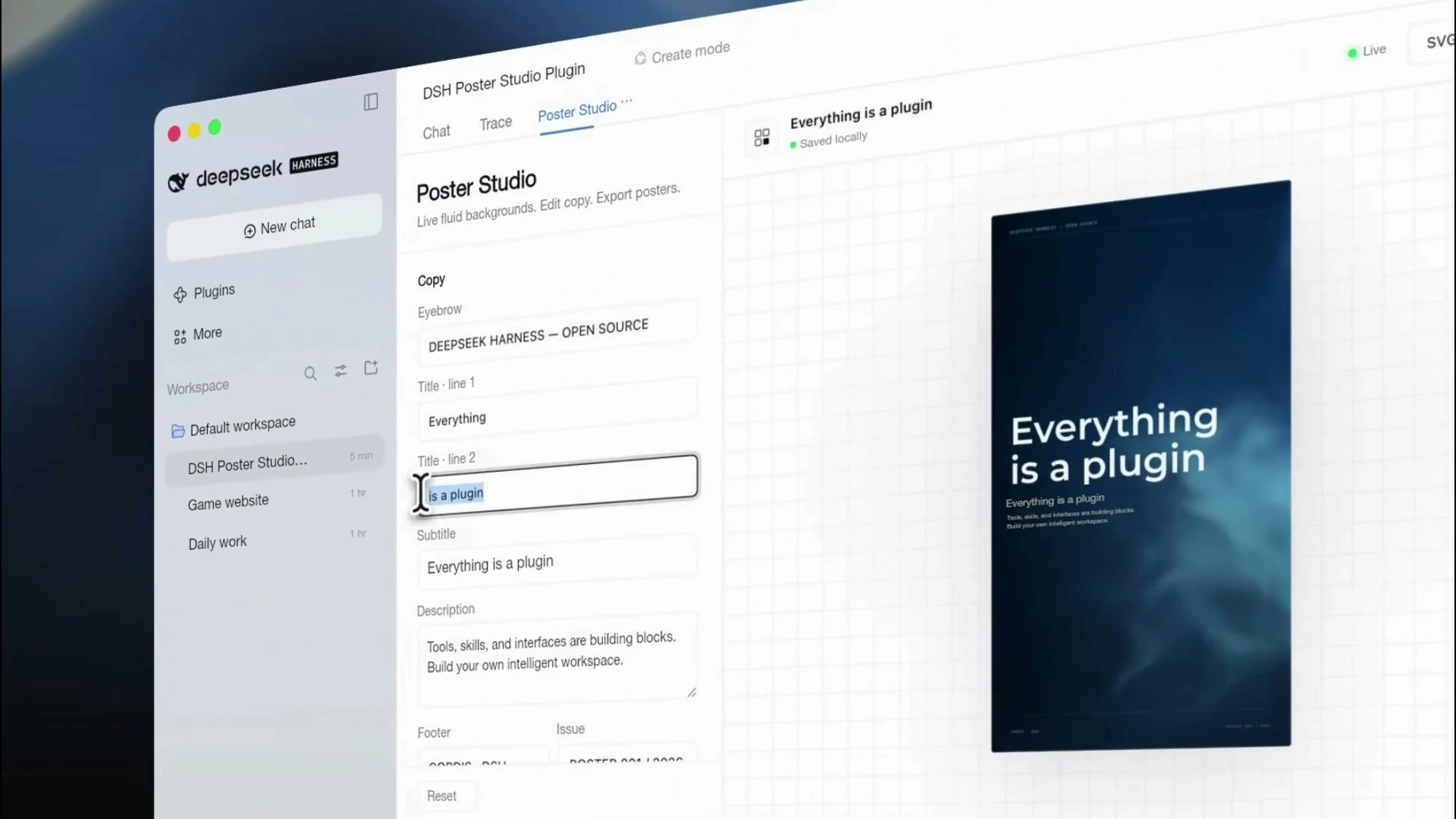
Create a poster design workbench plugin accessible from the conversation. Use the shader background pattern and English font from the DeepSeek Harness website. Let me customize the poster title, text, and shader colors. Keep the default page minimal, with no unnecessary subheadings or information. Set the default poster title to “Everything is a plugin”.5. Video editing workspace
Open a video editing workspace from a conversation. Edit with a preview and timeline, or describe your edits in chat.
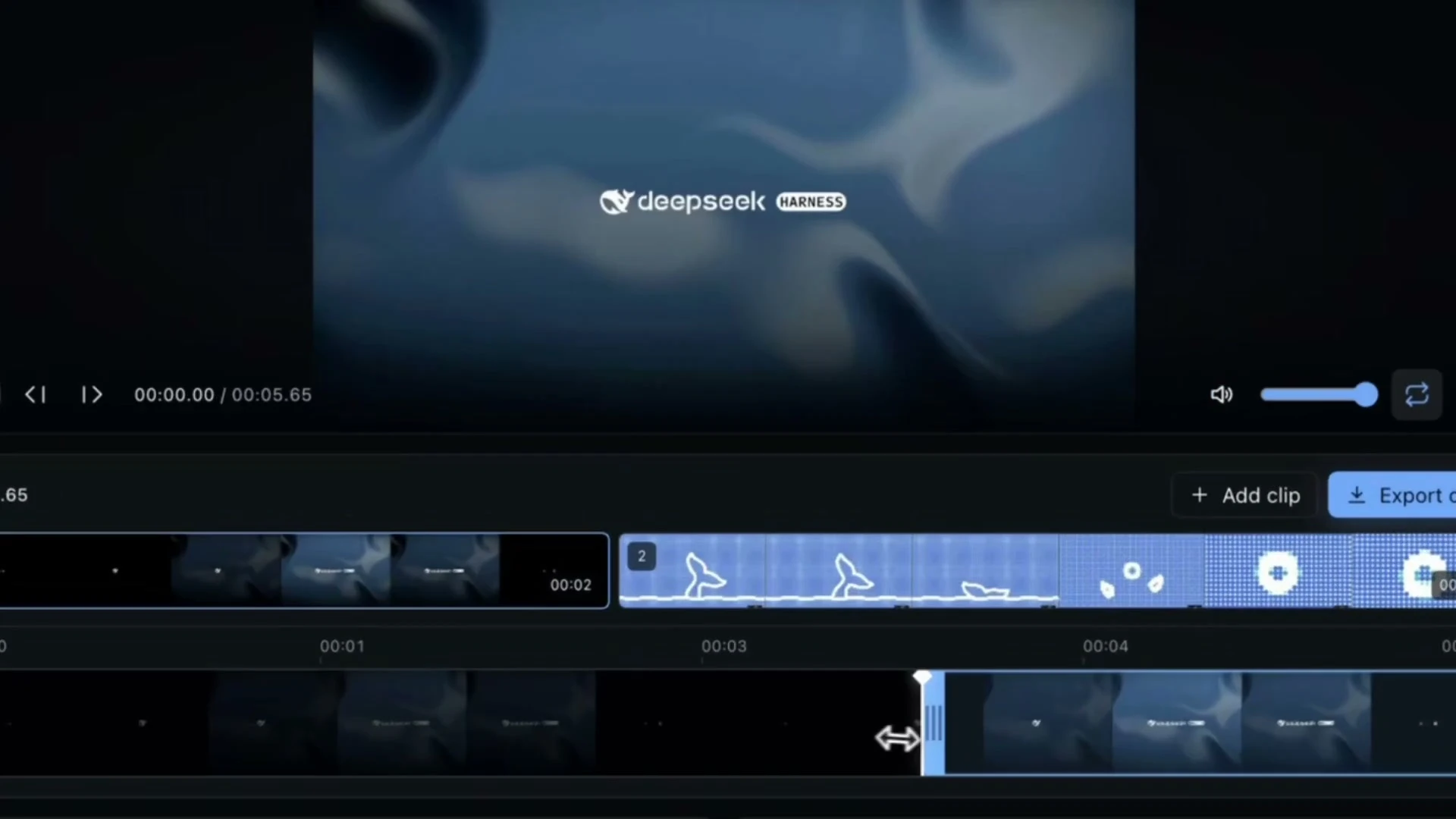
Create a video editing workbench accessible from the conversation, using the dark interface and familiar interactions of established video editors. Support uploading multiple videos, editing, and exporting. Place a large preview at the top and a timeline below for importing and editing clips. Also let me import and edit videos through natural-language requests in the conversation.6. Paper reader
Read papers in the right sidebar. Select text to highlight it, add a note, or ask about it in the conversation.
Create a paper reader accessible from the right sidebar. Let users upload papers and preserve the original layout, fonts, images, and all other content without any loss. When text is selected, show a floating menu with options to highlight it, add a note, or ask about it in the conversation. Match the default question prompt to the interface language.7. Conversation statistics
View token usage, estimated costs, and CPU activity based on your actual conversations.
Create a statistics plugin based on my actual conversation data. Show total token usage, conversation count, and estimated costs and budget based on token usage. Include a token-usage timeline, usage and costs for individual conversations, and CPU activity and utilization.My experience with DeepSeek Creator Mode
I used DeepSeek Creator Mode to recreate Chat Cut and build a Gwent game. The process was straightforward: chat with DeepSeek inside DeepSeek Harness, describe what you want to build, and request changes based on what you see.
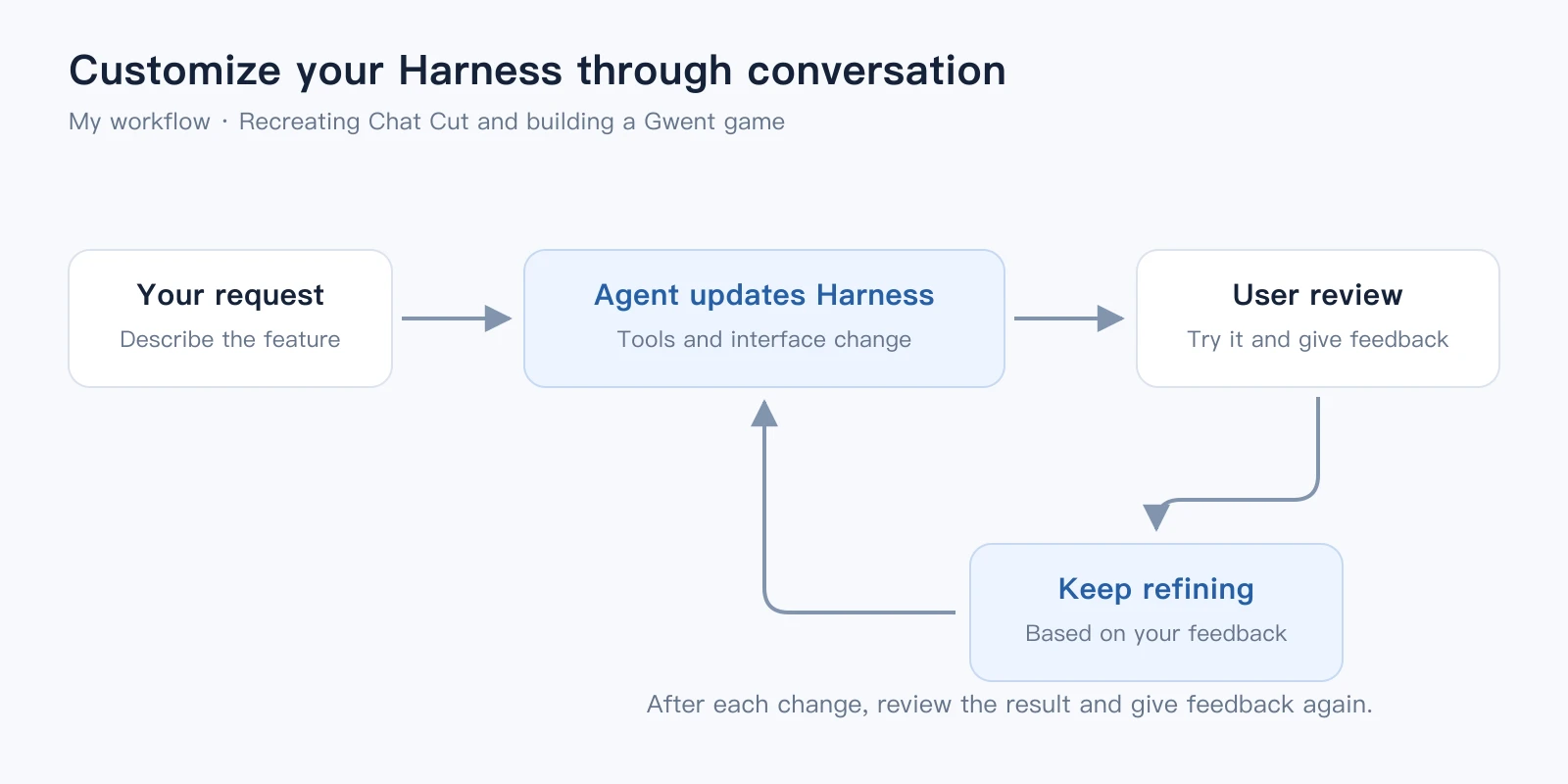
As the conversation progresses, the chat interface itself changes. New features appear, and existing controls and interactions can be refined further.
How to use Creator Mode in DeepSeek Harness
1. Open DeepSeek Harness and set up a model and workspace
Download the macOS or Windows desktop app. Alternatively, install Node.js and run this command to open the local web interface. Download DeepSeek Harness
npx @deepseek-ai/dsh webOn first launch, configure a model under Settings → Models, then select a workspace. The official quickstart uses a DeepSeek API key as its example. Setup guide
2. Start a conversation and select Creator Mode
Start a new conversation and select Creator Mode from the mode menu.
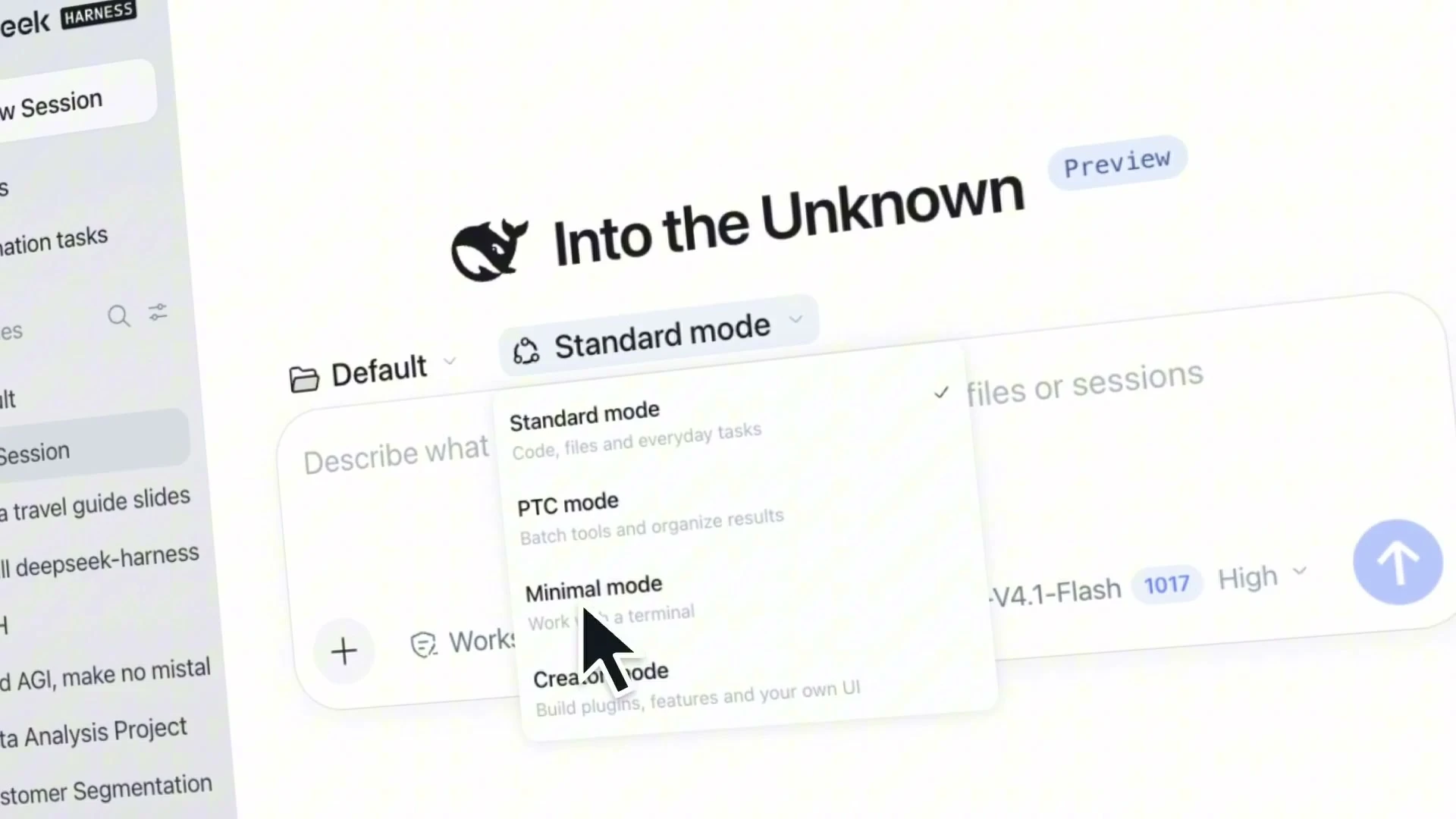
3. Describe what you want to build
Copy one of the official prompts above, or describe your own request. For example:
Specify where the feature should appear, what it should do, and how you want to use it. The agent then inspects the relevant interfaces, writes the code, and handles plugin installation.
4. Try the feature and refine it in chat
Once the feature appears, try it and tell DeepSeek what to change. For example: “Add titles to the notepad and let me save multiple notes.” Or: “The panel is too narrow; make the editing area wider.”
5. Manage your plugins
Use the Plugins page in the sidebar to view, enable, disable, or remove installed plugins. Some changes take effect immediately; if the interface asks for a restart, restart the app to apply them. Plugin manager documentation
Current limitations
DeepSeek Harness is still in developer preview, and its plugin interfaces and compatibility will continue to evolve. Existing plugins may need changes after an app update. Project README
Changes made through the plugin manager affect other conversations that share the same configuration. Installed backend plugin code runs in the host process and does not have the same isolation as the workspace sandbox. Plugin manager documentation
DeepSeek Creator Mode FAQ
How are DeepSeek Creator Mode and DeepSeek Harness related?
DeepSeek Harness is the application that runs the agent; Creator Mode is one of its modes. It lets you create and configure plugins through conversation to change the workspace’s features and interface.
Where can I use DeepSeek Creator Mode?
Start a new conversation in DeepSeek Harness and select Creator Mode. DeepSeek Harness is available as a desktop app or a local web interface launched from the command line.
Do I need to code to use DeepSeek Creator Mode?
You can describe what you need in natural language. The agent writes the code and installs the plugin.
Is DeepSeek Creator Mode free?
DeepSeek Harness is open source under the MIT license and can be run locally. Cloud model calls, including those used to create and debug plugins, are billed by your chosen provider.
Can I use my plugins in future conversations?
Plugins installed through the plugin manager are saved in the current configuration and can be used across conversations. Whether a plugin saves its notes, tasks, or edited content depends on how that plugin is implemented.
How does DeepSeek Creator Mode differ from Super Agent?
DeepSeek Creator Mode extends tools, interfaces, and the runtime environment. The Super Agent design focuses on handling incoming information, scheduling multiple tasks, and maintaining context across work. Both relate to DeepSeek Harness, but address different needs. Read our DeepSeek Super Agent design explainer.
DeepSeek Creator Mode sources
- Official Creator Mode demo on X
- Official DeepSeek Harness desktop launch on X
- DeepSeek Harness website
- DeepSeek Harness on GitHub
- Official Creator Mode prompts in English and Chinese
- DeepSeek Harness quickstart
- DeepSeek Harness architecture
- Cordis paper
- Creator Mode runtime inspection tools
- Plugin manager documentation
- Anthropic: Customize Claude Code with mods
- Claude Code Mods overview