How a team chat app works
Team chat organizes conversations and brings work updates into one place
A team chat app combines a shared workspace with channels, direct messages, threads, search and integrations. Each part helps people keep up with conversations and the work happening around them.
Workspaces and channels
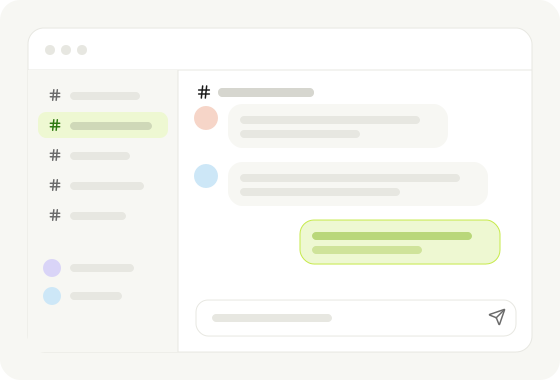
Everything starts with a workspace: one shared space for a company or team. Inside it, people join channels, which are ongoing group conversations organized around a team, project or topic. Anyone in the channel can read the history, so new members catch up without asking for old emails.
Direct messages, threads and mentions
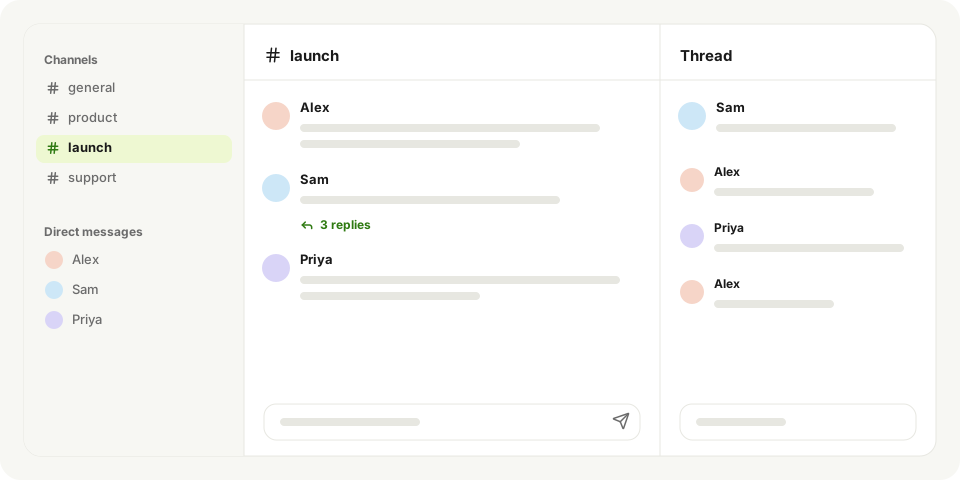
For one-to-one or small private conversations there are direct messages. Threads let people reply to a single message without burying the main channel. Mentions notify a specific person, and search pulls up old decisions, files and links in seconds.
Integrations and automated updates
Most apps also connect to other software. A new support ticket, a deploy or a calendar event can post into the right channel automatically, so the team sees updates where it already talks.
Together, channels, direct messages, threads, search and integrations help a team follow conversations and find the context behind its work.
Core features of a team chat app
Channels, messages, search and integrations support everyday teamwork
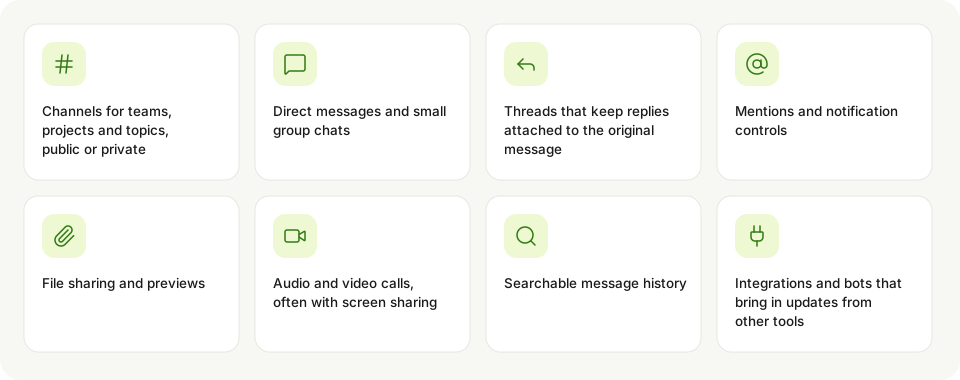
- Channels for teams, projects and topics, public or private
- Direct messages and small group chats
- Threads that keep replies attached to the original message
- Mentions and notification controls
- File sharing and previews
- Audio and video calls, often with screen sharing
- Searchable message history
- Integrations and bots that bring in updates from other tools
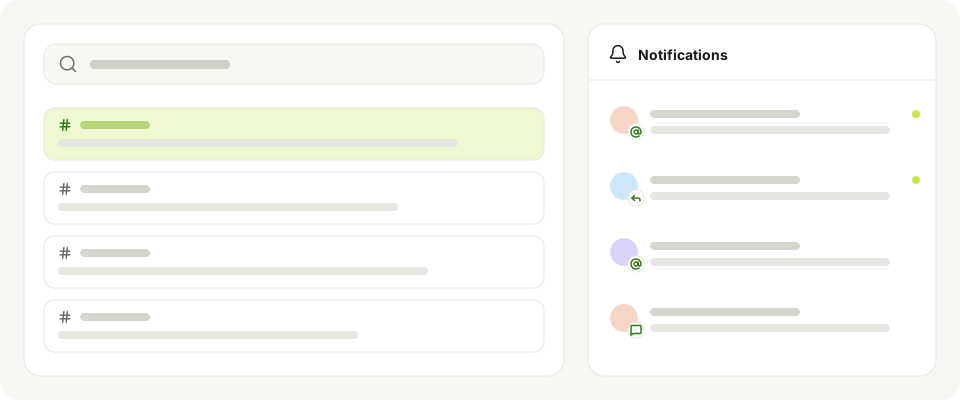
Look for these features together: organized conversations, ways to find and share information, calls, and connections to the tools your team already uses.
Team chat vs email vs project management tools
Use chat for discussion, email for outside messages and project tools for tracking
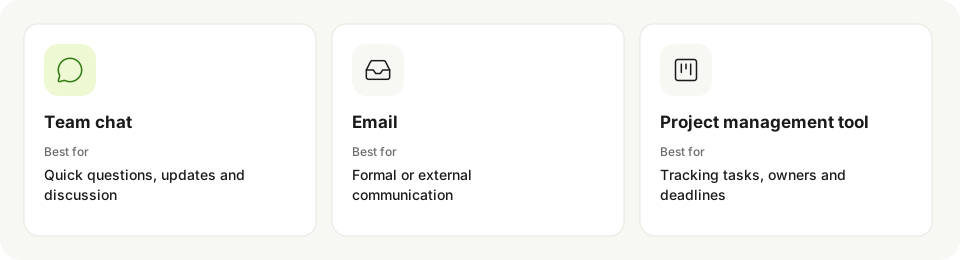
These three tools overlap, but each is built for a different job. Most teams use all three.
| Team chat | Project management tool | ||
|---|---|---|---|
| Best for | Quick questions, updates and discussion | Formal or external communication | Tracking tasks, owners and deadlines |
| Speed | Real time or near real time | Slower, inbox based | Updated as work moves |
| Who sees it | Everyone in the channel | Only the people on the thread | Everyone on the project |
| Where history lives | Searchable channels | Individual inboxes | Tasks and boards |
| Weak spot | Important decisions can scroll away | Long reply chains, hard to share | Not built for conversation |
A simple rule: talk in chat, send outside messages by email, and record work that needs an owner and a due date in the project tool.
Who uses team chat apps
Remote teams and business departments use chat to coordinate work
Remote and hybrid teams rely on chat as their shared office, since it replaces the quick question across the desk. Engineering teams use it for incidents and deploy alerts, support teams for escalations, sales teams for deal updates and marketing teams for launches and reviews.
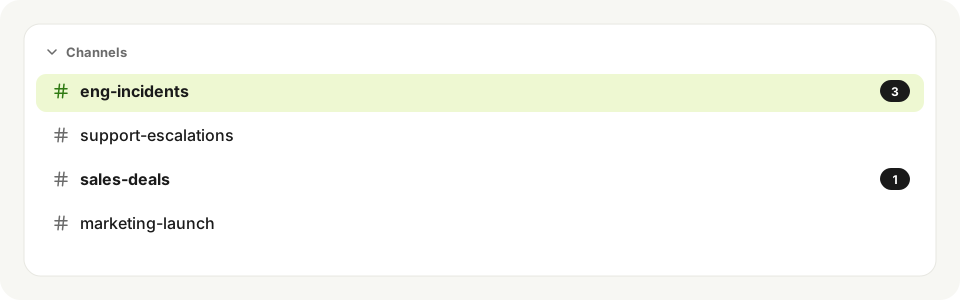
Small businesses use it too, often on a free plan, to keep work conversations out of personal texts and group chats.
Team chat fits teams that need a shared place for quick questions, updates and coordination, from remote departments to small businesses.
Popular team chat apps
Team chat options include dedicated apps, office-suite tools and self-hosted software
Slack is the best-known dedicated team chat app. Microsoft Teams comes with Microsoft 365, and Google Chat with Google Workspace. Discord started with gaming communities and is now used by some teams for voice. Mattermost, Rocket.Chat and Zulip are open-source options that companies can host themselves.





Compare dedicated chat apps, the tool included in your office suite and self-hosted options against the way your team works.
How AI is changing team chat
AI helps teams catch up, find answers and carry out work in chat
The biggest problem with team chat has always been volume. Busy channels move fast, and people miss decisions or spend time scrolling to catch up. AI features target exactly that: summaries of long threads and channels, search that answers a question instead of listing messages, and drafts of replies and updates.

A newer step is AI agents that work inside the chat itself. Instead of only summarizing, an agent can take a request from a channel and do the work, such as pulling data, filing a ticket or preparing a document. Offloop is built around this idea, as an AI-native team chat app where agents work alongside the team.
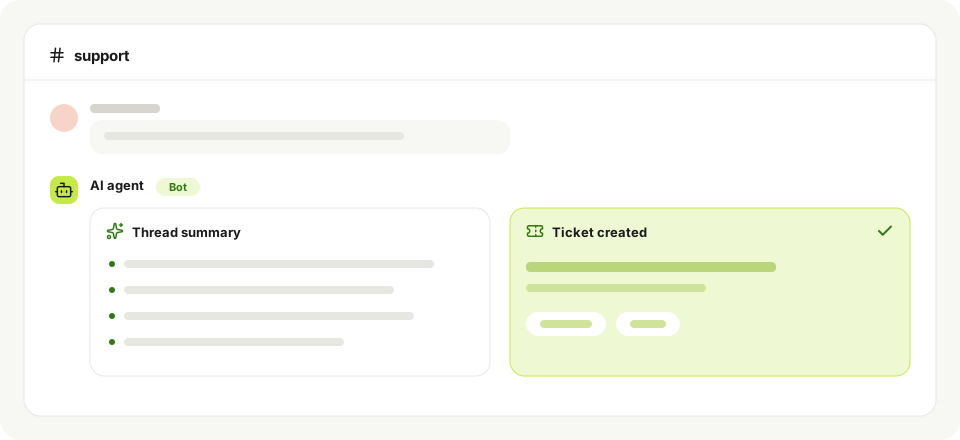
When comparing AI chat features, distinguish help with reading and writing from agents that can carry out requests inside the conversation.
How to pick one
Start with your existing tools, then compare limits and work requirements
Start from what the team already uses. Teams on Microsoft 365 or Google Workspace often begin with the chat tool that comes with it. After that, compare free-plan limits, search history, integrations, AI features and whether self-hosting is needed.
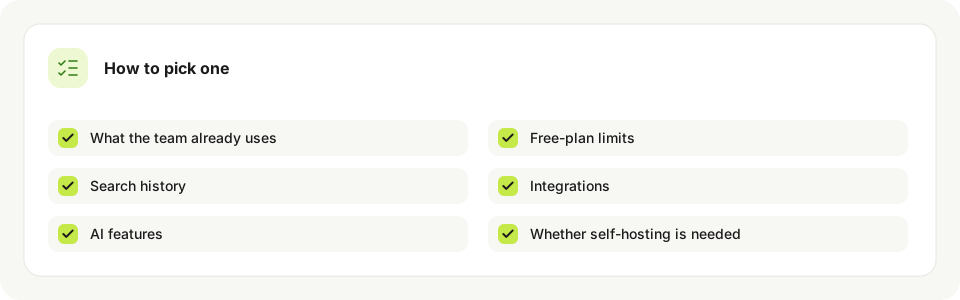
Choose the app that fits your existing tools and your team’s requirements for history, integrations, AI and hosting, after checking the free-plan limits.
Frequently asked questions
Quick answers to common questions about team chat apps.
What is the difference between a team chat app and a messaging app?
Consumer messaging apps are built for personal conversations. A team chat app is built for work, with channels organized by team or project, admin controls, searchable shared history and integrations with work tools.
Is Slack a team chat app?
Yes. Slack is one of the best-known team chat apps. Microsoft Teams, Google Chat and Zulip are other examples.
Are there free team chat apps?
Yes. Many team chat apps offer a free plan, usually with limits on message history, users or features. Check the current limits on each vendor's pricing page.
Can team chat replace email?
Inside a team it can replace most internal email. Email is still the standard for customers, partners and other external contacts.
How should a team set up channels?
Start with a few channels by team and by active project, name them consistently and archive ones that go quiet.
