How I compare AI assistants
I look at the whole job. Where does the assistant get its information, what can I use when it finishes, and what will I still have to check or hand over? Those questions matter whether I’m researching a purchase, editing a document, or handing a task to a teammate.
Which AI assistant should you choose?
| AI assistant | What I’d use it for | When I’d pick it | Pricing and access |
|---|---|---|---|
| ChatGPT | Everyday questions, web search, and deep research | You want a general-purpose AI assistant for a wide range of tasks | Free plan with limited uploads and deep research. |
| Offloop | Giving AI agents a direct role in team tasks | People and agents need to share information, carry out tasks, and hand off results | One-time free credits. Paid plans use workspace credits. |
| Claude | Writing articles, revising proposals, and working with files | You write regularly and spend time on long documents or complex tasks | Cowork requires an eligible paid Claude plan. |
| Google Gemini | Finding information in Drive and editing Docs | Most of your work materials are already in Google Workspace | Gemini in Docs requires an eligible Google Workspace or Google AI plan. |
| Microsoft 365 Copilot | Catching up on Teams meetings and finding decisions and action items | Your company does most of its work in Microsoft 365 | Requires an eligible license and appropriate meeting setup. |
| Town | Managing email, scheduling, meeting prep, and recurring work | You want an assistant that learns how you work and handles routine tasks proactively | Free 30 chats/month. Starter $15/month. Pro $49/user/month, billed annually. |
Start with the row that matches the work you do most often. The price column shows how to try the relevant feature or what access it requires.
1. ChatGPT for everyday questions and research
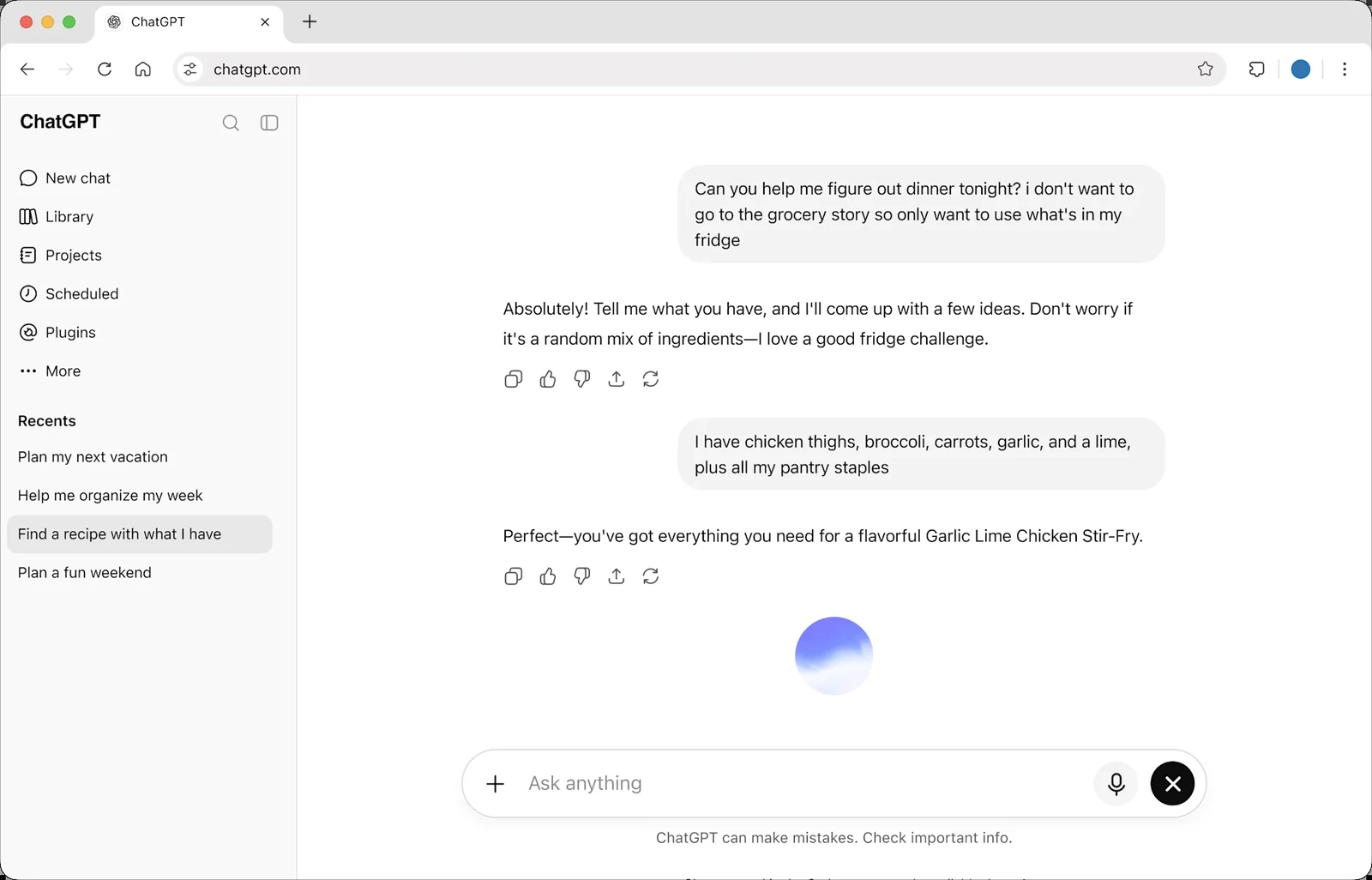
ChatGPT is my first suggestion if you want one tool for several kinds of work, including web research and occasional file analysis.
- Best for
- Everyday questions and web research
- Pricing and access
- Free plan with limited uploads and deep research.
Pros
- Deep Research produces a report with citations.
- Projects keep source files and conversations available for follow-up work.
Cons
- Free-tier tool limits can get in the way of frequent research or file work.
If you’re still figuring out what you need from an AI assistant, I’d start with ChatGPT. The free plan already covers everyday questions, web search, and some file analysis.
When a question needs several sources checked, I use Deep Research. It searches the web, pulls information together, and produces a report with citations. Before it starts, you can edit the research plan and specify which sites to prioritize. ChatGPT’s free plan · Deep Research guide
I find that especially handy when I’m shopping. A regular search can turn up a few standing desks quickly, but comparing the warranties takes more digging. One desk might cover the frame for ten years and the motor and controller for five. I’d have ChatGPT find the official warranty terms for each brand, then open the original pages and check the details myself.
If the research is likely to take a few days, I’d put it in a ChatGPT Project. That keeps the relevant files and conversations together so I can pick up where I left off. ChatGPT Projects
For most people, ChatGPT is a good place to start. Its free plan covers enough ground to show you where AI fits into your work. I’d consider paying once you’re doing deep research regularly, working with more files, or repeatedly hitting a usage limit.

2. Offloop for AI agents that work alongside your team
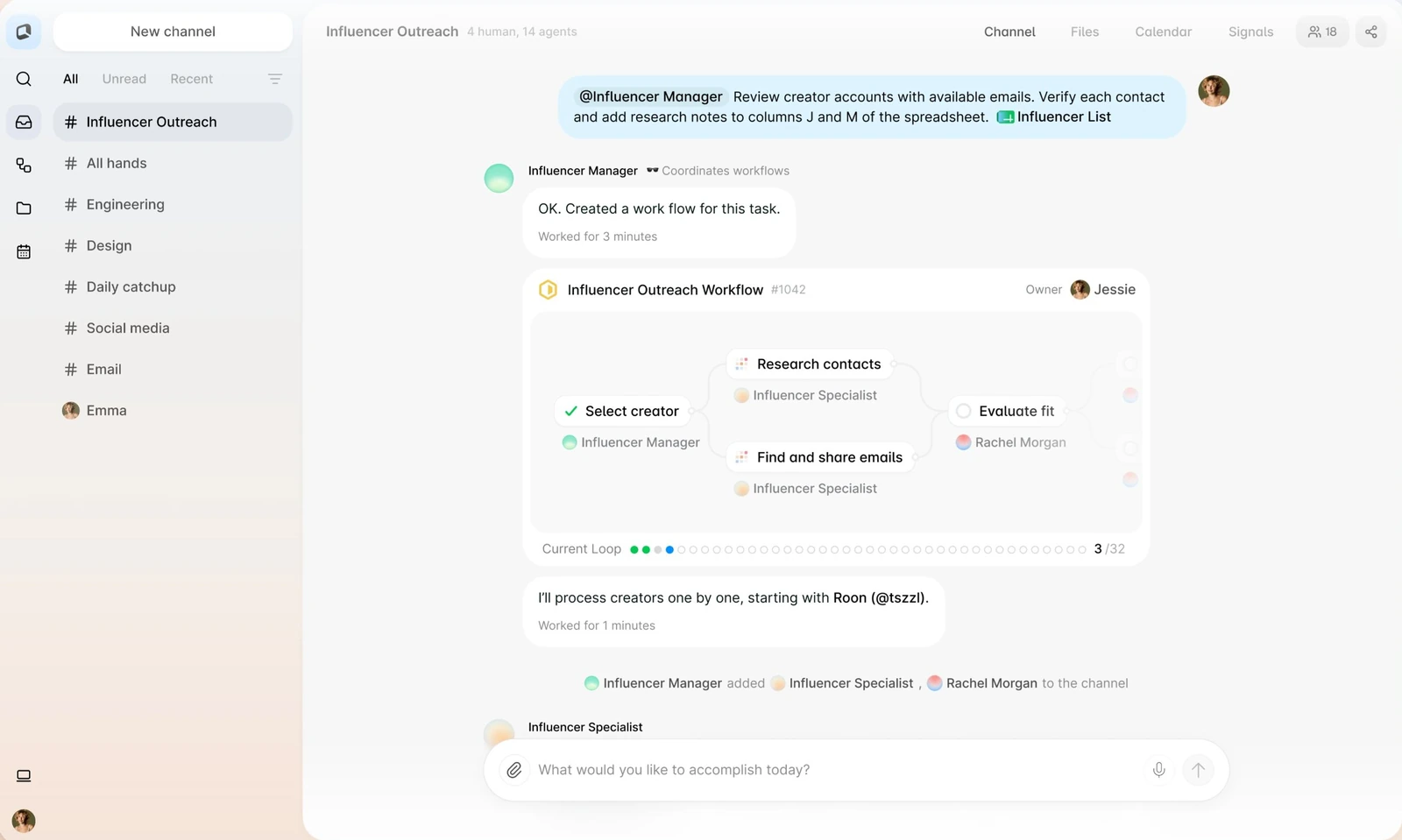
Offloop gives agents and teammates a shared place to follow a task from its original request through evidence, decisions, and handoffs.
- Best for
- Shared work with people and agents
- Pricing and access
- One-time free credits. Paid plans use workspace credits.
Pros
- People and agents can work from the same Channel context.
- Skills and Flow support reusable work and handoffs.
Cons
- The shared workspace pays off when teammates also use it for the task.
- Ongoing agent work uses credits.
My team and I build Offloop. We designed it primarily for teams that want AI agents to take part in their work.
In Offloop, agents can have their own responsibilities, join team Channels, use tools they’ve been given access to, and move work forward. Teammates can see the task, the material the agent is working from, and the results. They can take over when needed. We’ve used this setup in our own recruiting.
How we use Offloop for recruiting
We wrote about a recruiting workflow we ran at Offloop. At 9 a.m., Loopie sent a founder a recruiting brief on WeChat. Two candidates were waiting on a decision. Each entry included a screening score, relevant experience, and a recommended interview round.
The founder replied, “I’ll interview both. Send me the résumés.”
The résumés arrived a few minutes later. Loopie also went into each candidate’s Channel and asked the recruiter and HR agent to arrange the interviews.
The next day, it sent the candidates a booking link so they could choose a slot. It would go back to the founder only if no time worked.
The founder made the interview decision. The agents handled the coordination and scheduling that followed. How our team uses AI agents in Offloop
ChatGPT or Claude can draft an interview invitation. Recruiting also means keeping track of several candidates, recruiters, interviewers, and status changes. It gets harder to follow when all that work sits in one person’s chat.
Offloop Channels keep shared discussions and materials together. Skills let the team reuse a way of working. Flow coordinates execution and handoffs across agents and teammates. Offloop Channels · Offloop Flow
I want agents to take on work like research, writing, recruiting, and development directly. I’d like teammates to be able to follow that work in the same place, without each person briefing a private assistant and copying the result back to everyone else.
If your company mainly needs a tool for everyday questions, I’d start with a general-purpose assistant. Offloop offers one-time free credits, so you can try it on one real team task and decide whether to pay based on what your agents get done and how much they run. Offloop pricing

3. Claude for writing and working with files
I prefer Claude for drafts that go through several rounds. Cowork is the option I’d use when I want an editable file back.
- Best for
- Writing, revision, and file-based work
- Pricing and access
- Cowork requires an eligible paid Claude plan.
Pros
- Projects keep instructions, files, and related chats together.
- Cowork can handle multi-step work and produce editable files.
Cons
- Local resources may require an active desktop connection.
Claude is my preference for writing articles, revising proposals, and working through long documents.
An article usually goes through several rounds. I move sections around, check the facts, then work on the tone and details. I like to keep earlier discussions available so I can revise the draft without explaining the background each time. Claude Projects keeps related files, instructions, and conversations together. Claude Projects
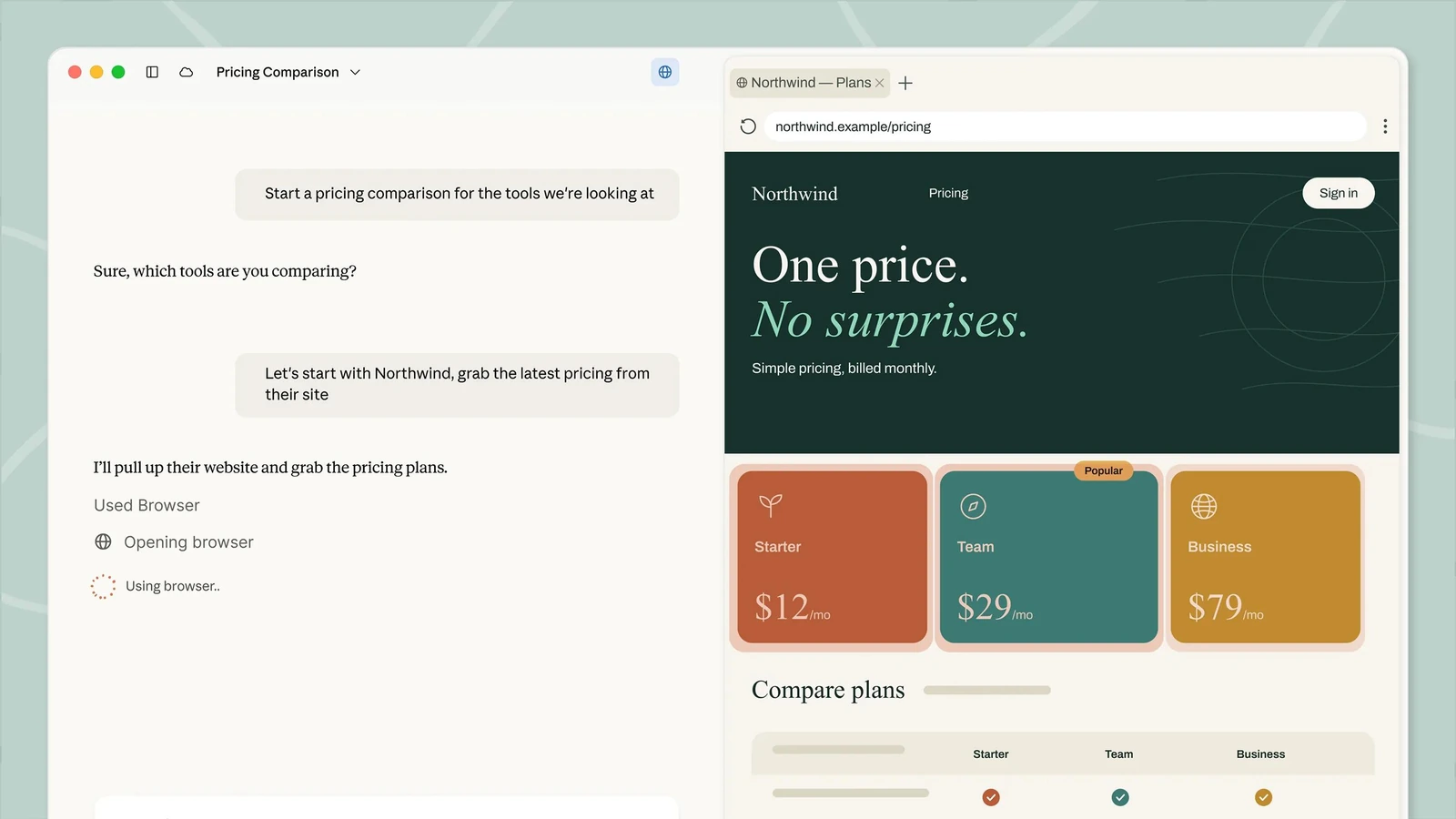
Claude Cowork is especially interesting when I want an editable file at the end. Give it a few user interviews, an older product brief, and a set of new requirements. It can read the material, revise the brief, and list any claims that still need evidence. Then you can keep editing the finished file yourself.
Cowork can handle multi-step tasks, and you can change the instructions while it’s working.
Cloud tasks can continue after you shut down your computer. If a task needs local files or desktop apps, access to those resources still depends on your local setup. Claude Cowork guide
I choose Claude because it suits the way I write and revise. I recommend trying it alongside ChatGPT. Give both the same material you know well and see which output comes closer to what you wanted and how much editing each one needs. That comparison usually tells me more than a model leaderboard.

4. Google Gemini for teams that already use Google Workspace
Gemini is useful when the latest brief, supporting materials, and draft already live in Google Docs and Drive.
- Best for
- Work that already lives in Google Workspace
- Pricing and access
- Gemini in Docs requires an eligible Google Workspace or Google AI plan.
Pros
- Works inside Docs with relevant Drive files.
- You can specify which Drive sources to use in supported features.
Cons
- Source attribution can be incomplete.
- There’s less benefit if your work is spread across other apps.
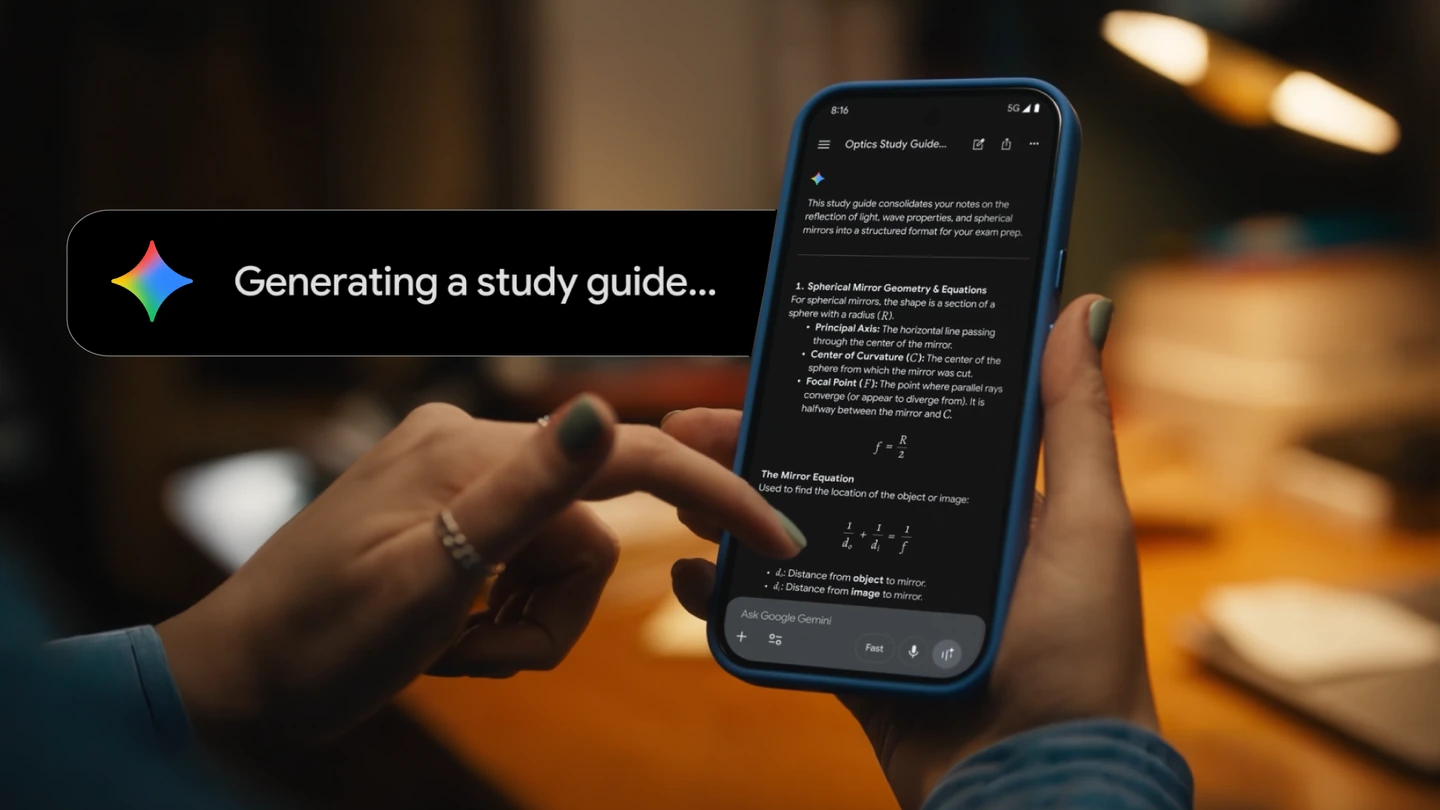
If your team’s files, email, and calendars are already in Google Workspace, I’d try Gemini first. It works directly with tools like Google Docs and Drive, so you can use it without downloading each document and uploading it to another AI assistant.
That convenience matters when a project keeps changing. A launch brief might be on its third revision, with the earlier versions still in Drive. Before I ask Gemini for a project update, I’d check which brief it’s reading and whether that version was approved.
Google lets you specify Drive sources in supported features, though Gemini’s source list may be incomplete. For dates, contract terms, or product commitments, I’d still open the original document and verify the details. Gemini in Google Docs · Gemini sources and search settings
Gemini is most useful when your work materials already live in Google Workspace. If you rarely use those apps, I’d be less inclined to buy it as a separate assistant.

5. Microsoft 365 Copilot for catching up on Teams meetings
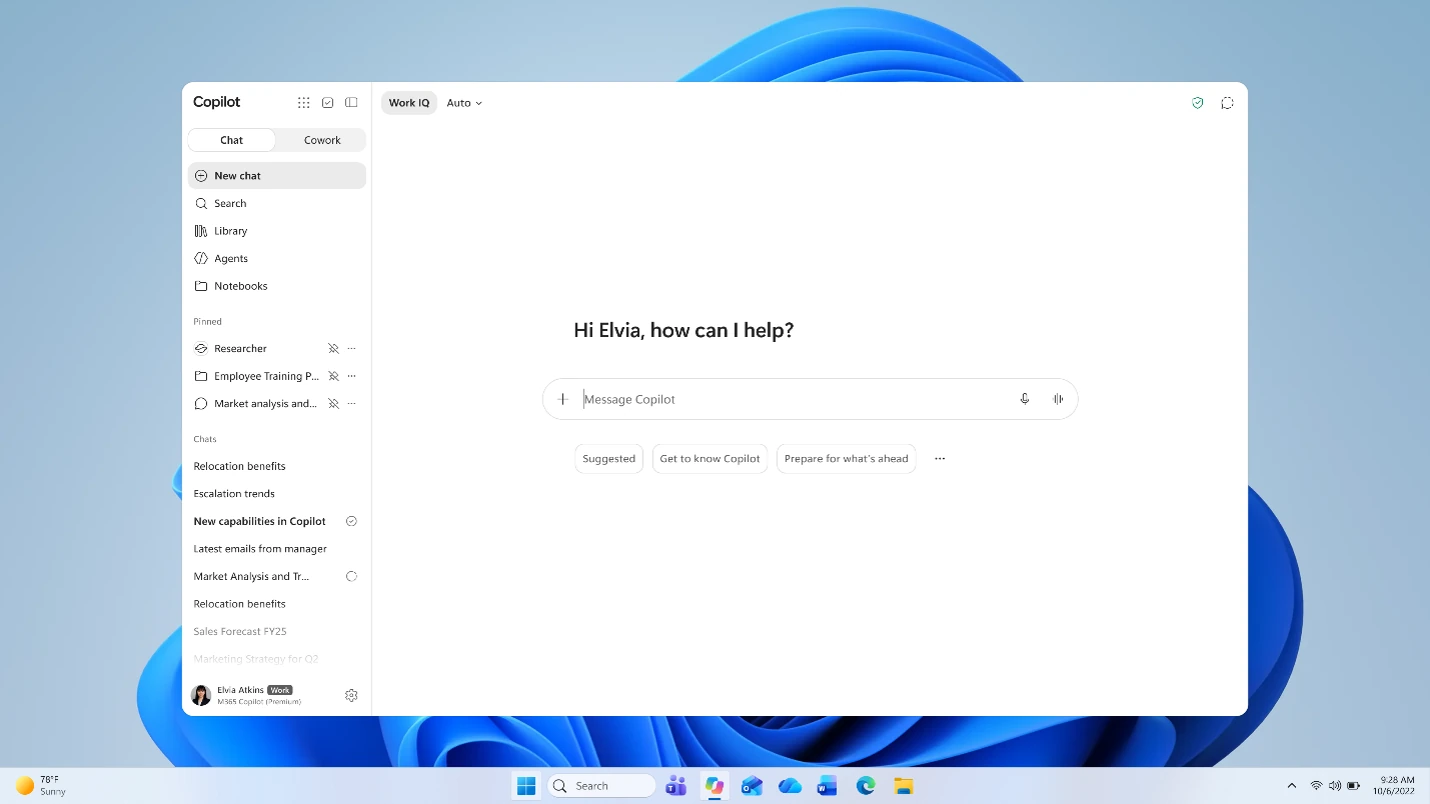
I’d try Microsoft 365 Copilot when people regularly need to recover decisions and follow-ups from Teams meetings.
- Best for
- Catching up on Teams meetings
- Pricing and access
- Requires an eligible license and appropriate meeting setup.
Pros
- Can summarize discussions and surface action items inside Teams.
- The meeting transcript gives you something to check against.
Cons
- Post-meeting access depends on settings, transcription, and licensing.
- A summary can misread a suggestion as a decision.
I’d consider Microsoft 365 Copilot if your company holds a lot of Teams meetings. When I miss a project meeting, I usually need three things. What did we decide? Who owns the next steps? What’s still open?
With an eligible license and the right meeting records available, Copilot can answer questions about the meeting, summarize what was discussed, and pull out action items. That’s usually quicker than watching the recording from the beginning.
I’d check the meeting transcript for decisions that matter. If someone said, “We could consider launching next week,” a summary that says “We decided to launch next week” could change what the team does. Using Copilot to catch up on Teams meetings
After-meeting access depends on organizer settings, transcription, and account licensing. Some meetings only allow Copilot during the call. Copilot in Teams FAQ
If your company already pays for Microsoft 365 and spends much of its day in Teams, Outlook, and SharePoint, I’d put Copilot high on the list to try. I’d be less likely to buy it separately for a team that rarely meets or often has incomplete meeting records.

6. Town for taking care of recurring work proactively
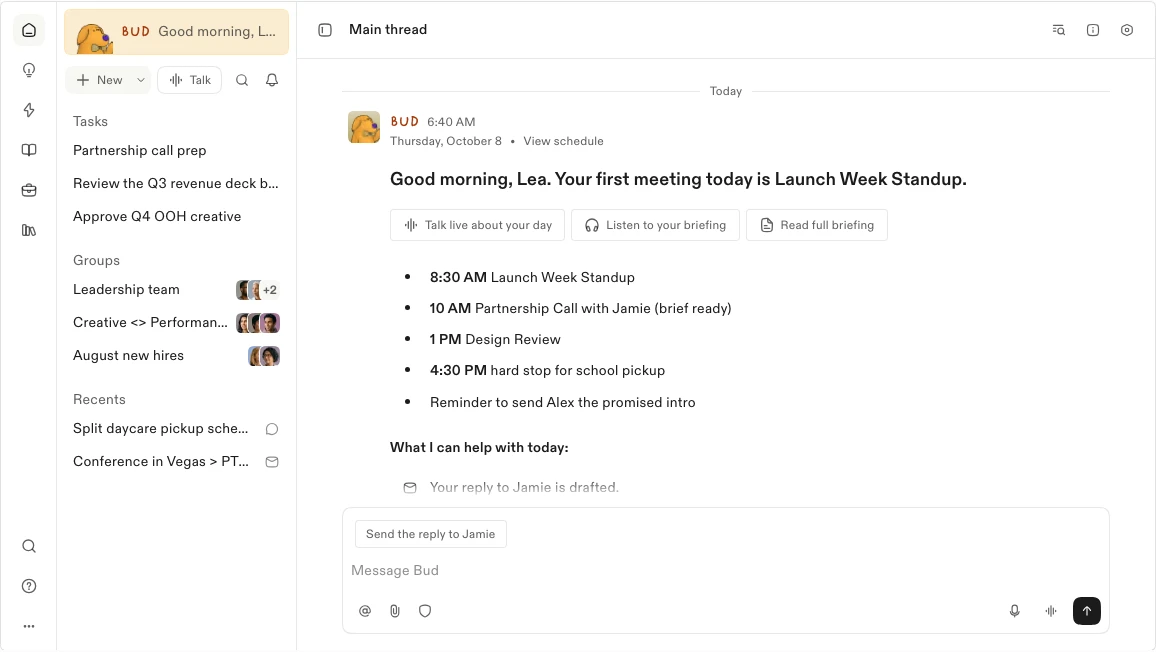
Town is for people who want a personal assistant to come back to the same inbox, calendar, and admin work throughout the week.
- Best for
- Recurring email, scheduling, and meeting prep
- Pricing and access
- Free 30 chats/month. Starter $15/month. Pro $49/user/month, billed annually.
Pros
- Routines can run on a schedule after setup.
- You can keep outbound email subject to approval.
Cons
- Starter has a limited number of custom Routines.
- Connected accounts and approval settings take time to configure.
Town is a newer AI assistant for work. It gives each user a personal agent called a Townie. Connect it to your email, calendar, files, and other tools, and it can build up context about the people you deal with, the projects you’re working on, and how you like to work. Town is designed to keep routine work moving between chats.
Let Townie handle recurring work
Town’s Routines run tasks on a recurring basis. Morning Briefing pulls together email, calendar events, and items that need attention at the start of the day. Auto Inbox sorts incoming mail and prepares drafts. Meeting Brief gathers information about the attendees and relevant background before a meeting.
You can also tell Townie what you need and have it create a Routine. For example, every Friday it could check which customers haven’t replied, list the follow-ups that are due, and draft emails for the following week. Once the Routine is scheduled, it can run each Friday without you starting it again. Town’s routine library · Town’s Routines documentation
Townie can connect to Google Workspace, Slack, GitHub, and other tools to find information and take actions across apps. On eligible plans, teammates’ Townies can collaborate, and teams can share certain connections, Skills, and Routines. Your own Townie is still where you do most of your work with the assistant. Town’s product overview · Town for teams
Decide what Townie can do on its own
My first concern with automated inbox and calendar work is whether the assistant might make the wrong call on my behalf. By default, Town can draft email from your account, and you approve it before it goes out to other people. You can grant more latitude for specific recipients or custom Routines.
I’d start by letting it sort my inbox, prepare for meetings, and draft replies. Once I’ve seen how it handles those, I’d consider letting it edit calendar events or send certain emails automatically. Town’s email and approval settings
Pricing and whether I’d pay
Town’s free plan includes 30 assistant chat messages per month. Starter costs $15 per month and adds daily briefings, inbox management, and a limited number of custom Routines. Pro costs $49 per user per month when billed annually, with 5,000 monthly credits and more automation features. Town pricing
I’d try Town if email, meetings, scheduling, and recurring admin work take up a good part of your day. Its value comes from taking care of those small jobs week after week. If you mostly want to summarize the occasional email, rewrite a paragraph, or look something up, I’d stick with the general assistant you already have.
I’d start with one or two real Routines and see how they work over time. The decision comes down to whether Townie can handle your particular habits and workload reliably.
Try one real task before you pay
The more I spend on AI, the more I think it’s worth checking regularly which subscriptions I actually use. Some tools are impressive the first time and sit untouched a few weeks later. Others seem less impressive at first but take a ten-minute task off your plate every day.
If you’re deciding between ChatGPT and Claude, use a task you actually completed last week. Give both of them the same meeting notes and project brief and ask for a project update. Have them identify confirmed decisions, conflicting information, and who owns each next step.
Open the source material to check their conclusions, then see how much editing you’d have to do before using either result.
If you’re considering Town, give it a stretch of real calendar and email work. If you’re considering Offloop, have a teammate take over a task an agent has worked on and see whether you need to explain the background again.
A tool can win one test and still be a subscription I rarely use. The tools I keep are the ones that help me get work done consistently and still feel worth paying for next month.
Frequently asked questions about AI assistants
Answers about choosing, checking, and paying for an AI assistant.
What can an AI assistant do at work?
An AI assistant can answer questions, find information, draft documents, and summarize meetings. With the right connections and permissions, some assistants can also prepare email replies, schedule work, or run a recurring task. Start with a job that has a clear output, such as an editable brief with sources or a meeting recap with owners.
What’s the difference between an AI assistant and an AI agent?
One product can do both. Asking it to summarize an email is a way to get help with the step in front of you. Asking it to check each week for customers who haven’t replied and prepare follow-up drafts gives it a job to carry out on its own within limits you set. When I choose a tool, I look at what information and tools it can access, what can trigger it to act, and when it needs my approval.
How do I choose an AI assistant for my workflow?
Start with the step that slows you down most. If it’s finding trustworthy sources, try a research tool. If it’s revising a file across several rounds, check how the assistant keeps project context. If several people need to finish the work, test whether a teammate can find the latest decision and take over.
What are some good alternatives to ChatGPT?
If you spend a lot of time writing long documents or revising proposals, I’d try Claude. If you work in Google Docs and Drive most days, see how Gemini handles a document your team is still updating. If repeated email and scheduling work is the issue, give Town a recurring task and see how much time it saves over several runs.
Is a free AI assistant enough for work?
It can be enough for occasional questions, searches, and drafts. Test the particular feature you need before paying. For example, the ChatGPT free plan has limits on uploads and deep research, and Town’s free plan includes 30 assistant chat messages per month. The limit that matters is the one you hit on a real task.
How can I check an AI assistant’s answer for accuracy?
Ask for a source next to each consequential claim. Open the original file or page and check that it supports the claim and is the latest relevant version. For a meeting recap, check the transcript to see whether the group made a decision or only discussed an option.
Can an AI assistant keep working after I close my laptop?
It depends on where the task runs. For example, Claude Cowork can continue a cloud task after you shut down, but you need to keep Claude Desktop open and connected when a task relies on local files or desktop apps. Town can run a scheduled Routine after you set it up. Check what must stay connected before leaving a task unattended.
How do I control what an AI assistant can access or send?
Start by connecting only the account or files the task needs. Try drafts and previews first, then check which actions can run without approval. If someone else will take over, check whether that person can see the output and its sources using their own account.
Does everyone on a team need the same AI assistant subscription?
If your team meets in Teams, try a few real meetings with an account that has access and see whether asking Copilot about them afterward saves time. If only a few people need deep research or long-form writing, start by having them try the tools that fit those tasks. If everyone needs to track progress and take over work, get two or three teammates to run one shared task first and see how the handoffs go.
How do I tell whether a paid AI assistant is worth it?
Track a recurring task for a few runs. Count the time you spend preparing inputs, reviewing the result, fixing mistakes, and getting it to the next person. Compare that with doing the same work without the assistant. A fast first draft only saves time if the total effort goes down.

Sources and pricing
- Deep Research guide OpenAI
- How our team uses AI agents in Offloop Offloop
- Town pricing Town
More sources
ChatGPT
- ChatGPT’s free plan OpenAI
- ChatGPT Projects OpenAI
- ChatGPT plans OpenAI
Offloop
- Offloop Channels Offloop
- Offloop Flow Offloop
- Offloop pricing Offloop
Claude
- Claude Projects Anthropic
- Claude Cowork guide Anthropic
Google Gemini
- Gemini in Google Docs Google
- Gemini sources and search settings Google
Microsoft 365 Copilot
- Using Copilot to catch up on Teams meetings Microsoft
- Copilot in Teams FAQ Microsoft